NotebookLM PPT 튜토리얼: 600개 이상의 AI 슬라이드 만들기
2025년 AI 프레젠테이션 완벽 가이드

Tover Wu
AI 프레젠테이션 전문가
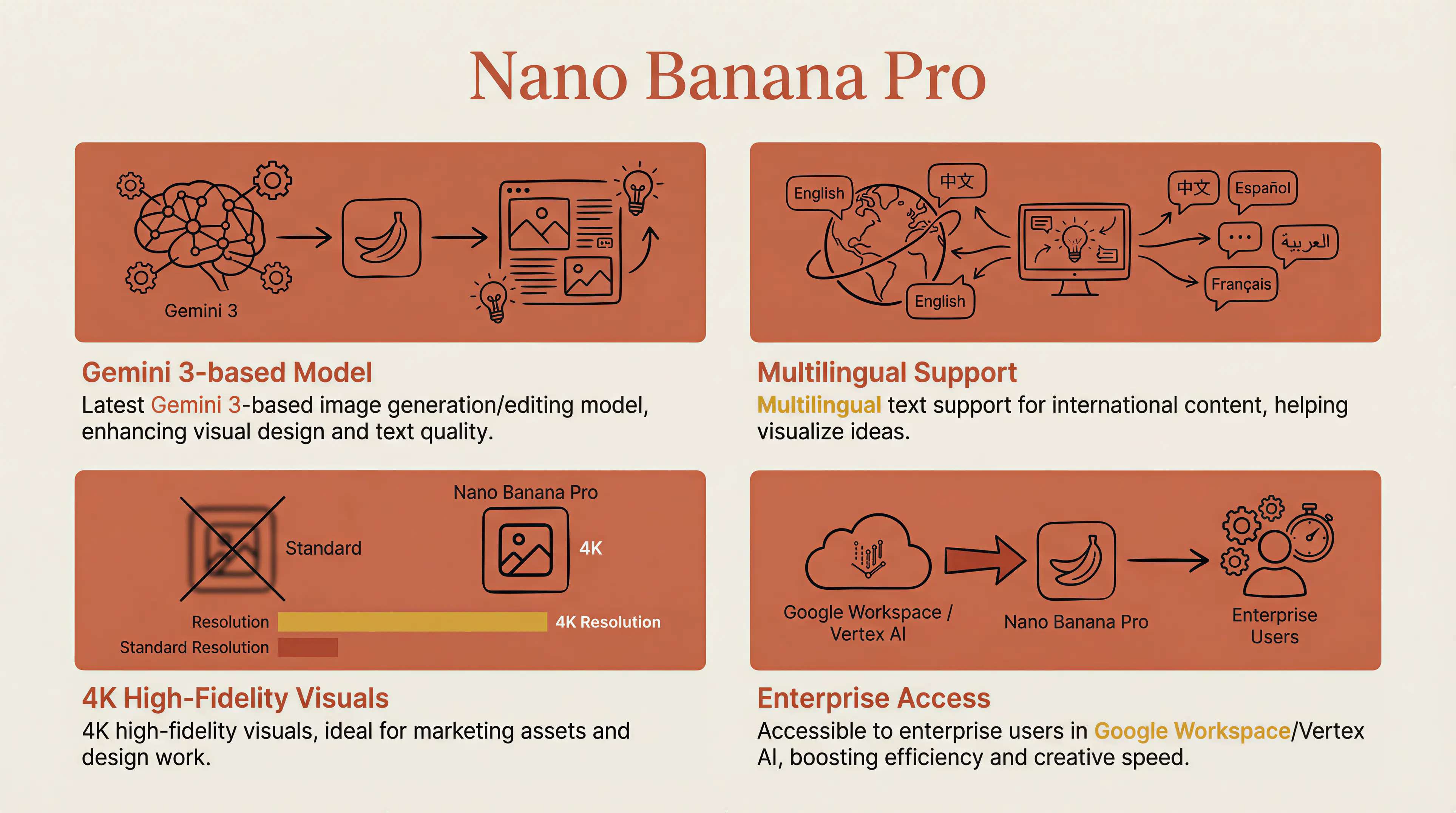
NotebookLM으로 생성된 Claude 스타일 AI 프레젠테이션 — 따뜻한 학술적 미학과 전문적 깊이
저는 거의 3년 동안 AI PPT 제작을 연구해왔습니다. 20개 이상의 도구를 테스트했습니다 — Gamma, KIMI, AIPPT, Tongyi, iFlytek, Tiangong, Wenxin Yiyan... 거의 모든 도구를 시도해봤습니다.
During my studies and work, I used Gamma extensively for presentations. Back then, I thought Gamma was the ceiling. Then Google released Nanobanana Pro (Gemini 3 Pro image model) and integrated it into NotebookLM, and everything changed.
"PPT creation evolved from 'AI fills content + template matching' to 'AI directly draws images as PPT slides.'"
Every slide is a uniquely designed image — no template collisions, maximum visual distinctiveness.
For example, I can create a Claude Style PPT with warm academic aesthetics:
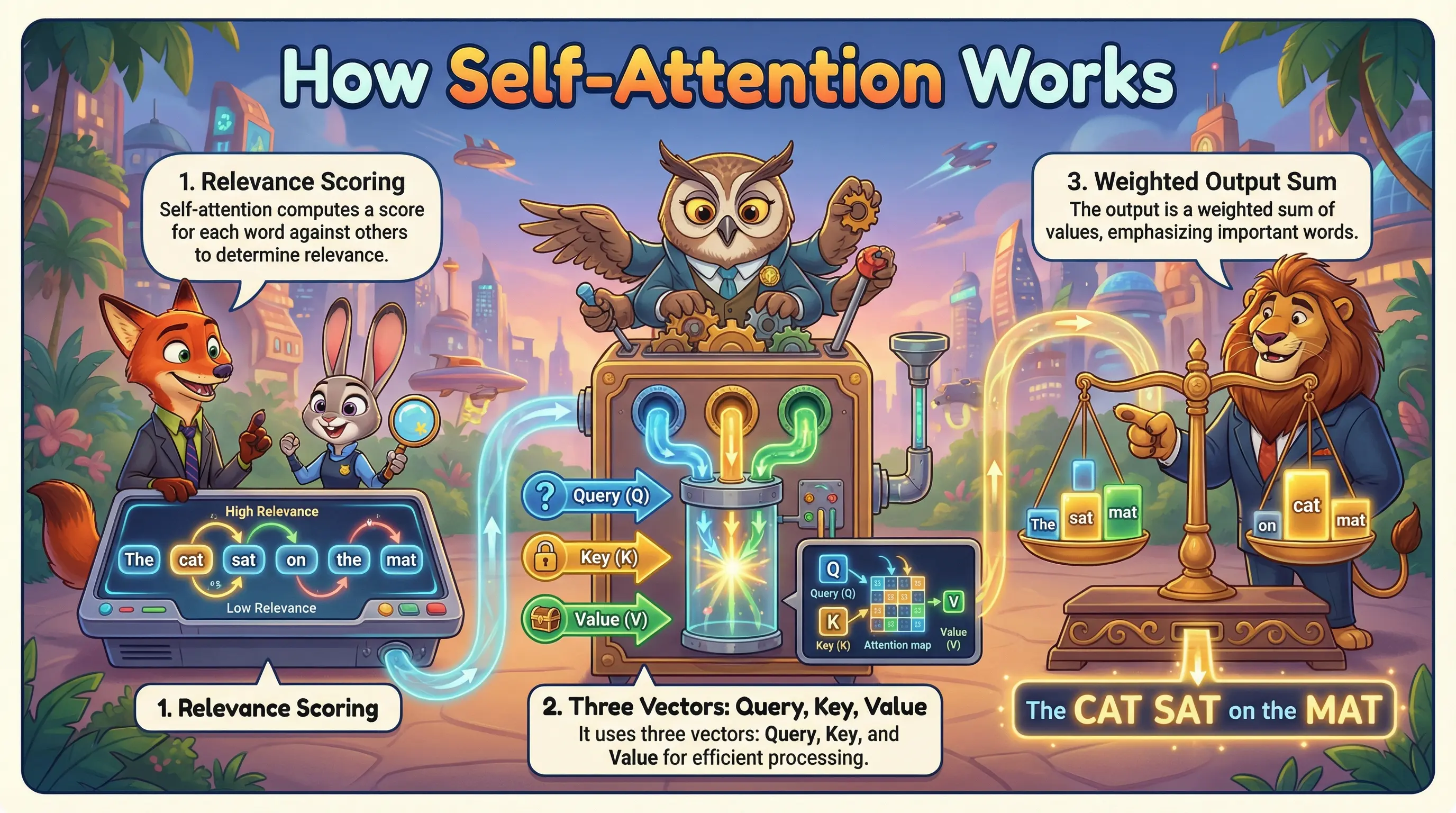
Or a Zootopia-themed PPT for creative presentations:
What You'll Learn
- Complete step-by-step workflow (including account setup)
- The script-first method — my secret to 600+ consistent slides
- 4 proven methods to fix text errors in AI-generated slides
- 6 popular PPT styles + how to lock your preferred style
- How to create long presentations (when AI only generates 10-15 slides at a time)
1Complete Workflow: From Setup to Export
NotebookLM is Google's AI knowledge management product. You need a Google account to use it.

Note: NotebookLM is free, but Slide Deck and Infographic generation have usage limits. Free tier quality is lower and requires longer wait times. For best results, consider Gemini Pro subscription.
Step 1: Get Your Account Ready
You'll need a Gemini Pro subscription for the best experience. Gemini Pro accounts are linked with NotebookLM — same login works for both.
Step 2: Create Your Notebook

After logging in, click "Create new" to create a notebook. Give it a descriptive name — for example, if you're making an AI marketing trends PPT, call it "AI Marketing Trends 2025".
Step 3: Upload Your Materials (The Secret Sauce)
The materials you upload determine your PPT's content quality. NotebookLM supports:
- PDF documents: Research reports, whitepapers, ebooks
- Google Docs: Import directly from Google Drive
- Web links: Paste URLs, it auto-extracts content
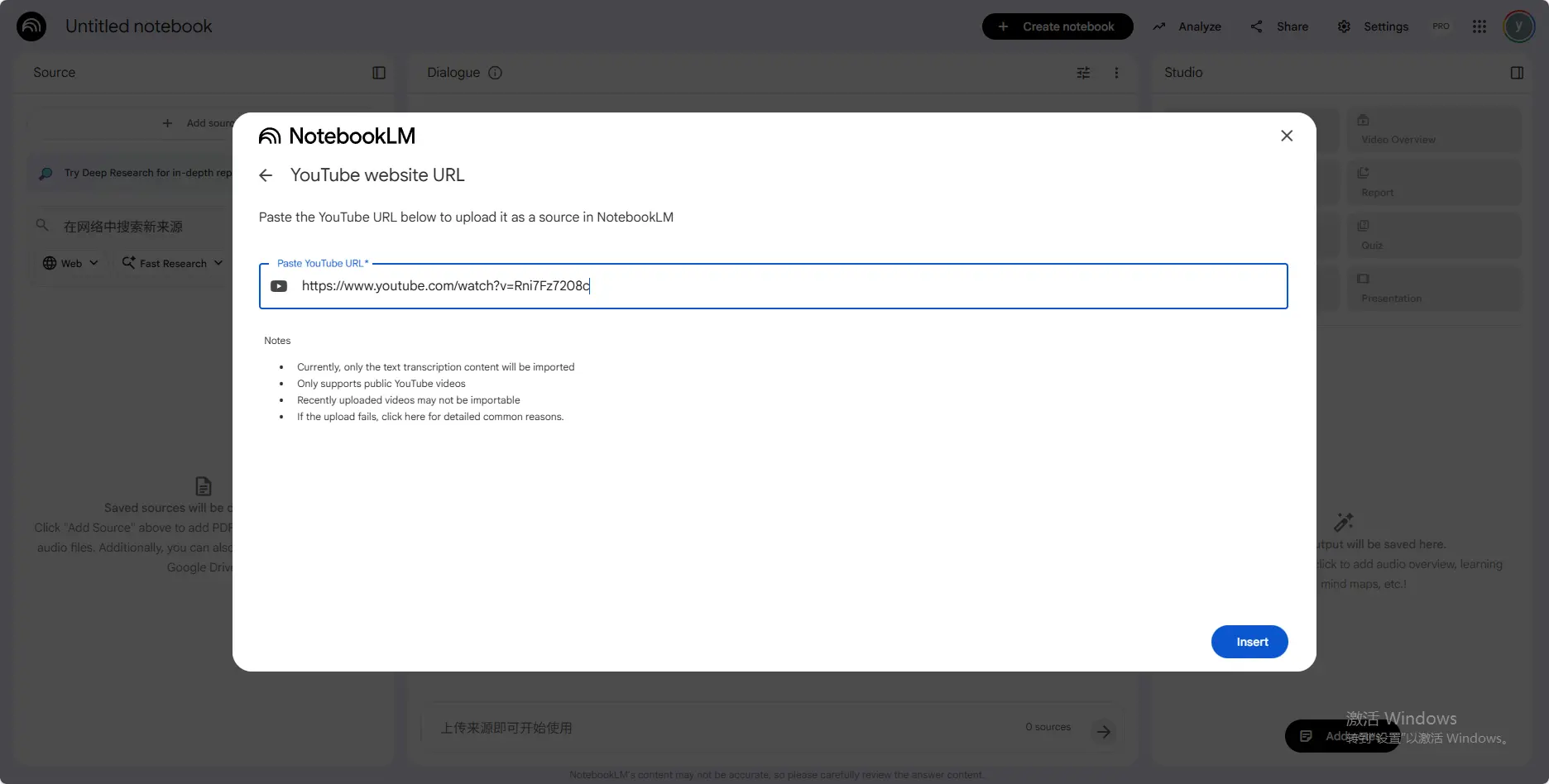
- YouTube videos: Paste video links, it extracts subtitles
- Plain text: Copy-paste directly

Pro Tip: The Script-First Method
Here's a technique most people don't know: uploading raw materials directly often produces suboptimal results because AI organizes content its own way.
My approach: Generate a speech script first, then use that script to generate the PPT.
<strong>Phase 1:</strong> Use any AI (Claude, ChatGPT, etc.) to generate a complete speech script based on your materials.
Phase 1: Use any AI (Claude, ChatGPT, etc.) to generate a complete speech script based on your materials.
For example, if I want to make a PPT about Elon Musk's interview, I upload the interview video to NotebookLM and ask it to generate a script:
// Sample prompt for script generation:
You are an expert in writing speech scripts. Based on the following materials, please help me draft a speech script on the topic of XX. The requirements are as follows:
- • Divide the script into X chapters, with 3–5 key points for each chapter.
- • Each key point should have a clear heading, plus 2–3 sentences of explanation.
- • Language style: professionally sound yet colloquial and conversational.
- • Total duration: approximately XX minutes

Phase 2: Copy the generated script and paste it into NotebookLM as a source using "Paste text".
Phase 3: Generate your PPT. Now it follows your script's structure exactly — highly aligned with your vision.
This is how I created my 70-page PPT. I spent 30 minutes refining the script with AI, confirmed the content was solid, then fed it to NotebookLM. You control the content; AI handles the visuals.
Step 4: Generate Your Slide Deck
Select the sources you want to use, then look for the Studio panel on the right.

Customize format, language, and style:

- Format: "Detailed Deck" (content-rich, for reading) or "Presenter Slides" (minimal, for live presentations)
- Language: Choose your preferred output language
- Custom Prompt: Define your desired style (crucial for quality!)
For example, my Doraemon-style PPT used this prompt: "I'd like to ask you to create a PPT for an AI PPT generation course where Doraemon explains the entire content. It should be presented in Doraemon's style, with approximately 15 pages."
Click "Generate" and wait 3-10 minutes depending on content volume. You can continue working — it generates in the background.
Step 5: View and Export
Once complete, download as PDF or present directly in the browser.


2How to Fix Text Errors in AI-Generated Slides
NotebookLM slides look amazing, but there's one big issue: text sometimes gets garbled. Since each slide is an image, editing is tricky.
NotebookLM currently only exports PDF — no direct editing. After testing all available solutions, I've summarized three approaches for different scenarios:
Method 1: DrawPPT AI Editor (Recommended)
Use DrawPPT's built-in editing tools: <strong>Edit Text</strong>, <strong>Regenerate</strong>, and <strong>Add Image</strong> — all without leaving the platform.
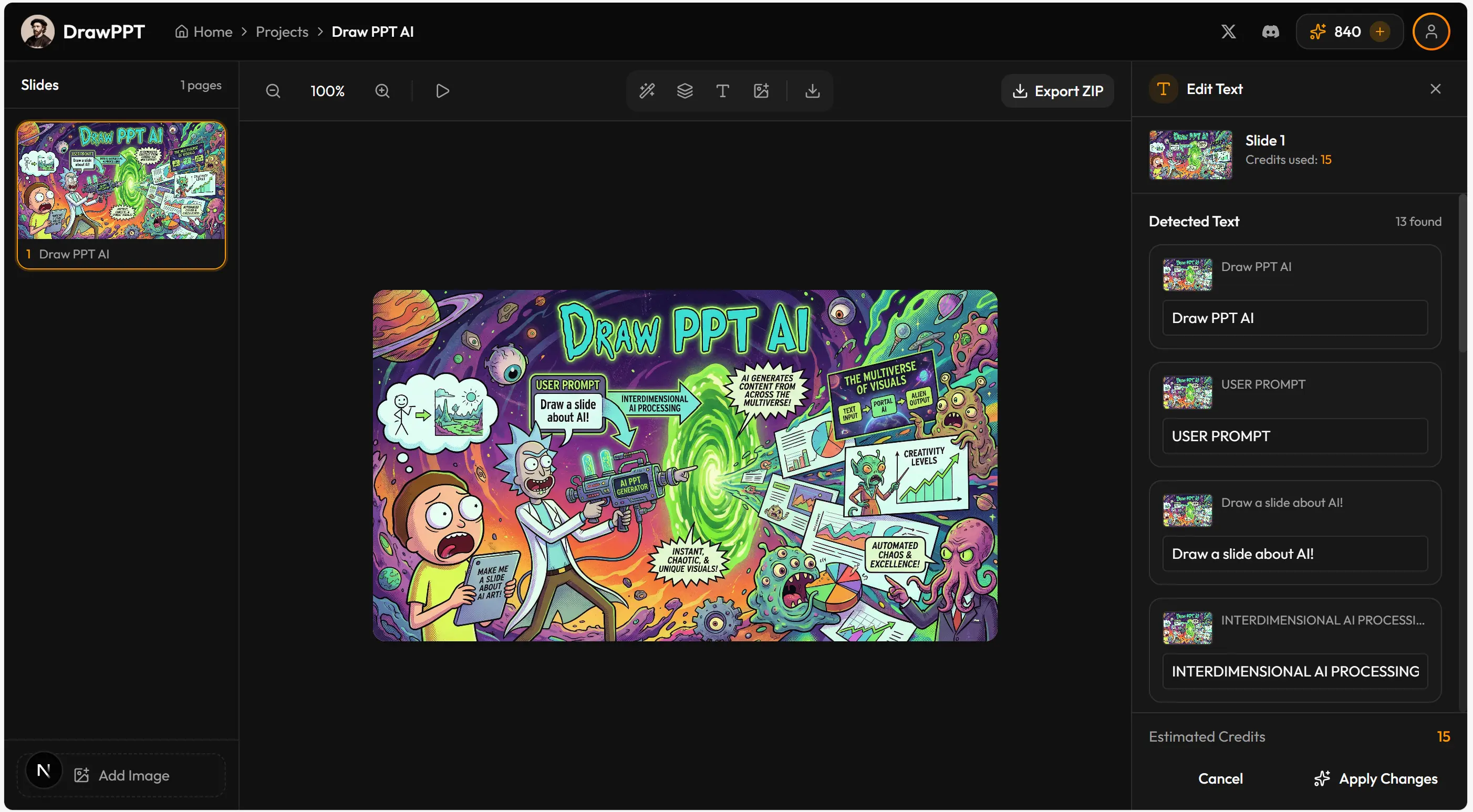
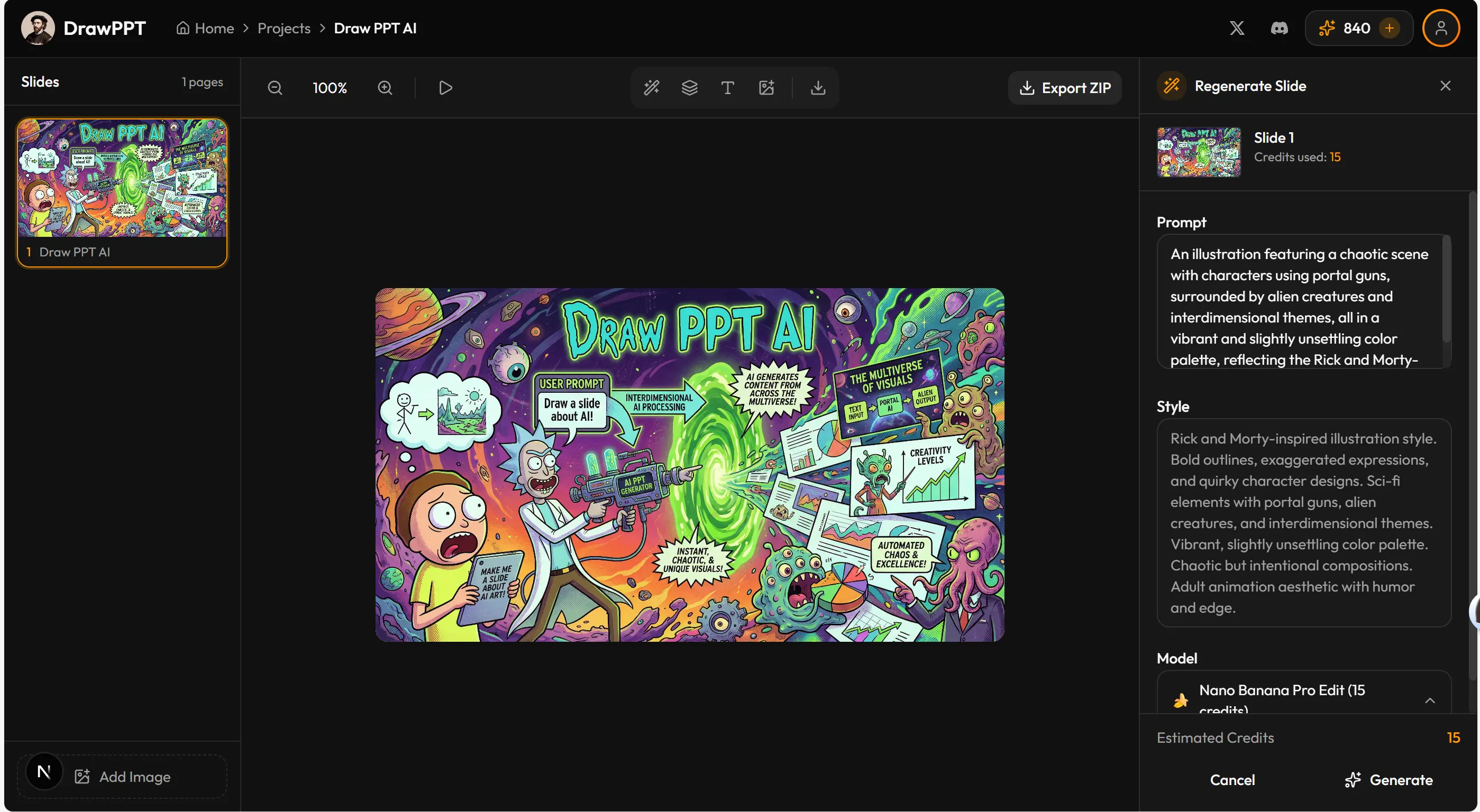
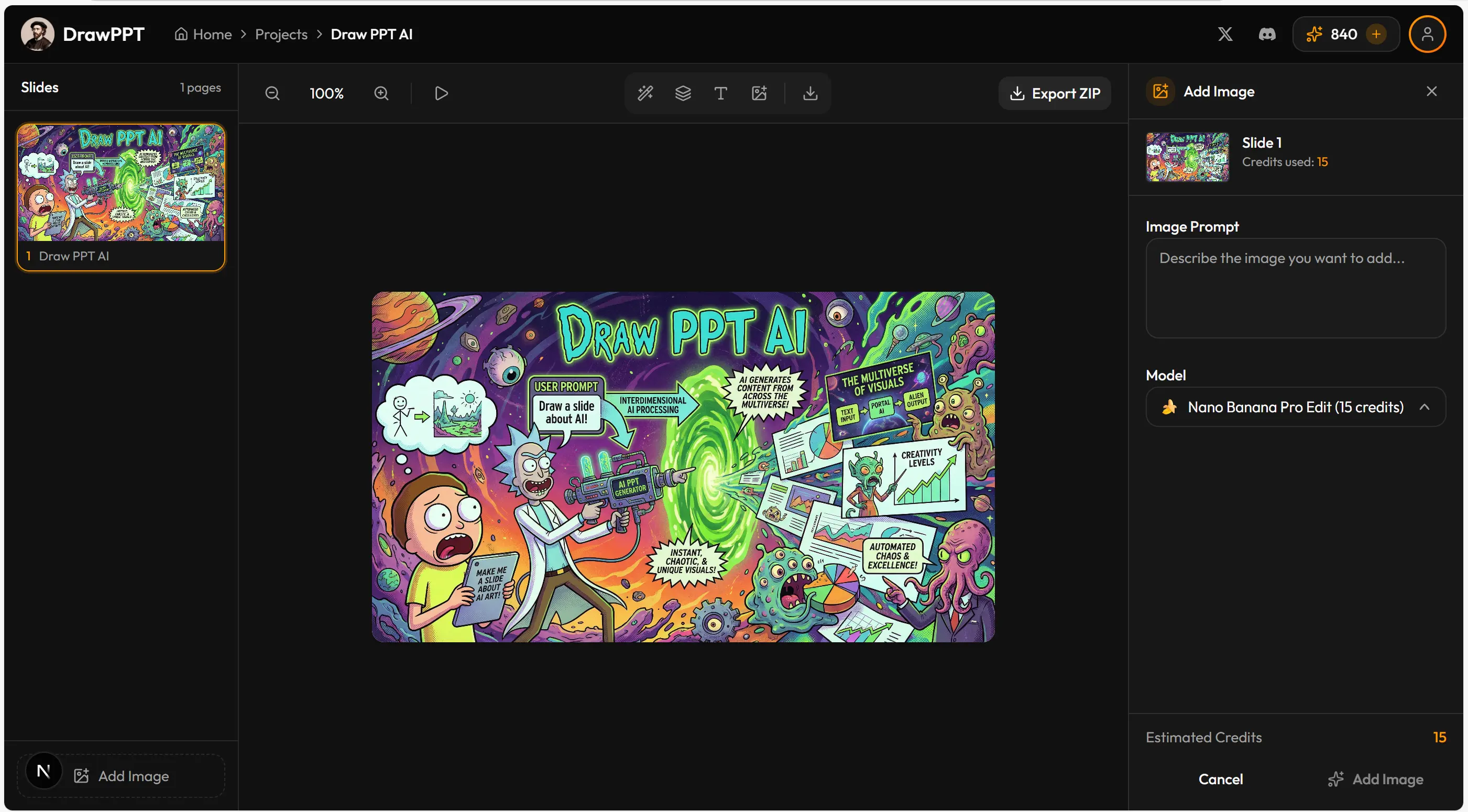
Best for: Fixing typos without regenerating. Don't like the design? Regenerate with a new style. Supports online presentation — no tool-switching needed.
Method 2: Lovart Image Text Editing
Lovart Lovart is a powerful AI design tool with an "Edit Text" feature — it recognizes text in images and lets you modify individual words.
Best for: Changing 1-2 words or numbers while preserving the original design. However, if the entire slide has garbled text, this won't help — use method 3 instead.
Method 3: PDF to PPT Conversion
Use PDF-to-PPT conversion tools to convert the PDF into editable PowerPoint format, then edit normally.
Best for: Many edits needed, or redesigning the overall layout. However, conversion often causes fidelity loss, and the original AI style may be compromised.
| Method | Best For | Preserves Style? |
|---|---|---|
| DrawPPT AI Editor | Quick fixes, regeneration | ✓ Yes |
| Lovart | 1-2 word changes | ✓ Yes |
| PDF to PPT | Major restructuring | ✗ Partial |
Ready to Create Your AI PPT?
Start with DrawPPT AI — 22+ professional templates, instant editing, and no design skills required.
자주 묻는 질문
NotebookLM이란?
NotebookLM은 Google의 AI 기반 연구 및 노트 도구입니다. 문서, PDF, YouTube 비디오, 웹 링크를 분석하고 프레젠테이션, 요약 등을 만들 수 있습니다. 고품질 슬라이드 생성에 Nanobanana Pro(Gemini 3 Pro)를 사용합니다.
NotebookLM으로 PPT를 어떻게 만드나요?
먼저 소스 자료(PDF, 문서, 링크)를 NotebookLM에 업로드합니다. 그런 다음 사이드바에서 'Studio'를 클릭하고 'Slide Deck'을 선택합니다. 원하는 스타일과 슬라이드 수를 선택한 후 '생성'을 클릭합니다. AI가 콘텐츠를 기반으로 슬라이드를 만듭니다.
NotebookLM은 무료인가요?
NotebookLM에는 슬라이드 생성에 제한이 있는 무료 티어가 있습니다. 최고의 품질과 빠른 생성을 위해 Gemini Pro 구독을 권장합니다. 무료 티어는 대기 시간이 길고 품질이 낮을 수 있습니다.
NotebookLM 슬라이드를 PowerPoint로 내보낼 수 있나요?
NotebookLM은 슬라이드를 이미지로 생성합니다. 이 이미지를 다운로드하고 DrawPPT를 사용하여 편집 가능한 PPTX 형식으로 변환할 수 있습니다. DrawPPT는 텍스트 편집, 재생성, 이미지 향상 기능도 제공합니다.
NotebookLM과 DrawPPT의 차이점은?
NotebookLM은 문서에서 AI 슬라이드를 생성하는 Google의 연구 도구입니다. DrawPPT는 22+ 템플릿, 즉각적인 편집, 완벽한 CJK 텍스트 렌더링, 원클릭 PPTX 내보내기를 제공하는 전문 AI PPT 플랫폼입니다. 많은 사용자가 둘 다 사용합니다 - NotebookLM으로 초기 생성, DrawPPT로 편집 및 향상.
Tover Wu
AI 프레젠테이션 전문가
3 years of experience researching AI presentation tools. Created 600+ AI-generated slides and counting. Passionate about making professional presentations accessible to everyone.