Tutorial NotebookLM PPT: Crea 600+ Diapositivas IA
La guía completa de presentaciones con IA 2025

Tover Wu
Experto en presentaciones IA
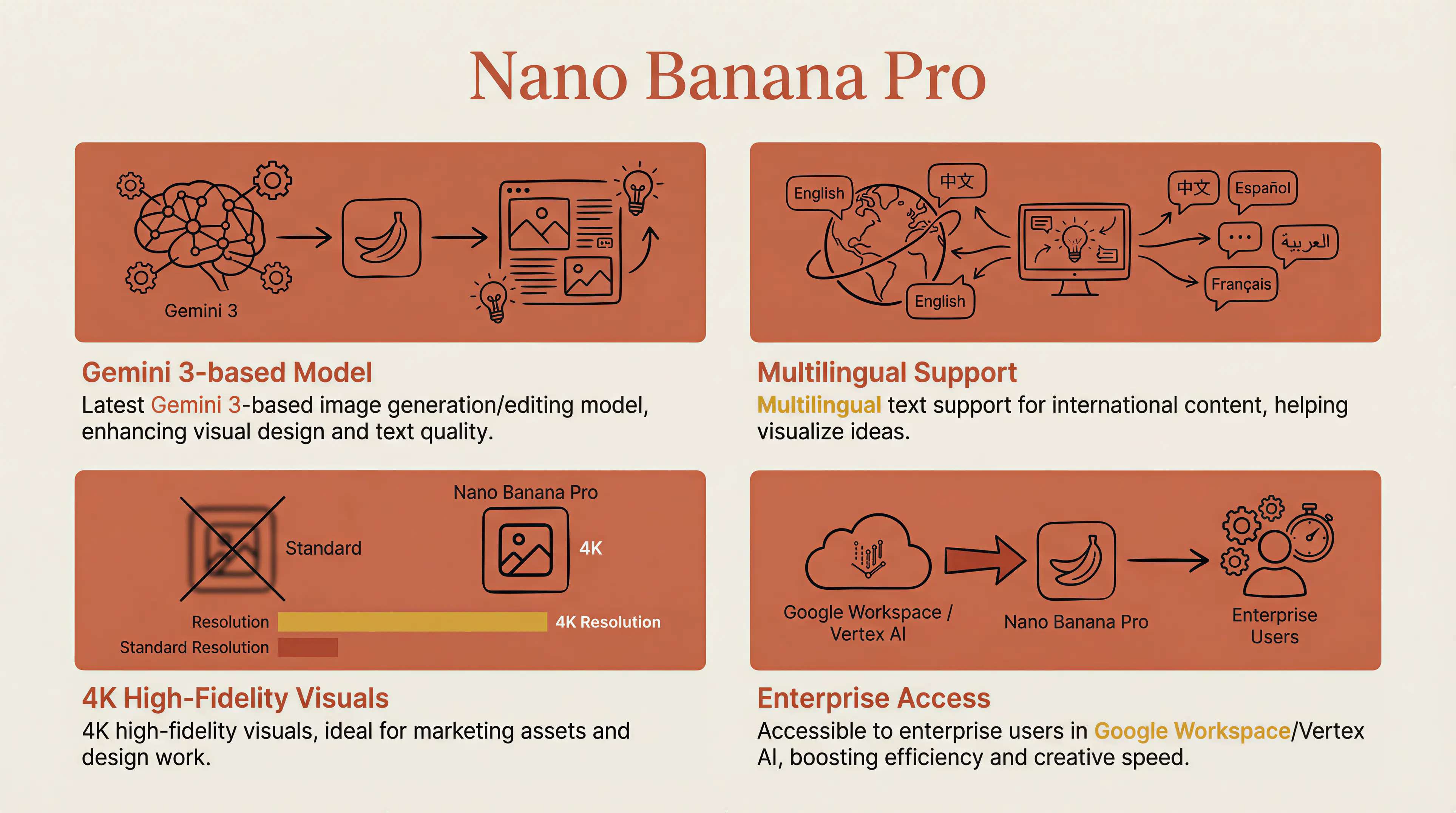
Una presentación IA estilo Claude generada con NotebookLM — estética académica cálida con profundidad profesional
He estado investigando la creación de PPT con IA durante casi 3 años. He probado más de 20 herramientas — Gamma, KIMI, AIPPT, Tongyi, iFlytek, Tiangong, Wenxin Yiyan... básicamente todas las herramientas que puedas nombrar, las he probado.
Durante mis estudios y trabajo, usé Gamma extensamente para presentaciones. En ese entonces, pensé que Gamma era el techo. Luego Google lanzó Nanobanana Pro (modelo de imagen Gemini 3 Pro) y lo integró en NotebookLM, y todo cambió.
"La creación de PPT evolucionó de 'IA llena contenido + coincidencia de plantillas' a 'IA dibuja directamente imágenes como diapositivas PPT.'"
Cada diapositiva es una imagen diseñada de forma única — sin colisiones de plantillas, máxima distinción visual.
Por ejemplo, puedo crear un PPT Estilo Claude con estética académica cálida:
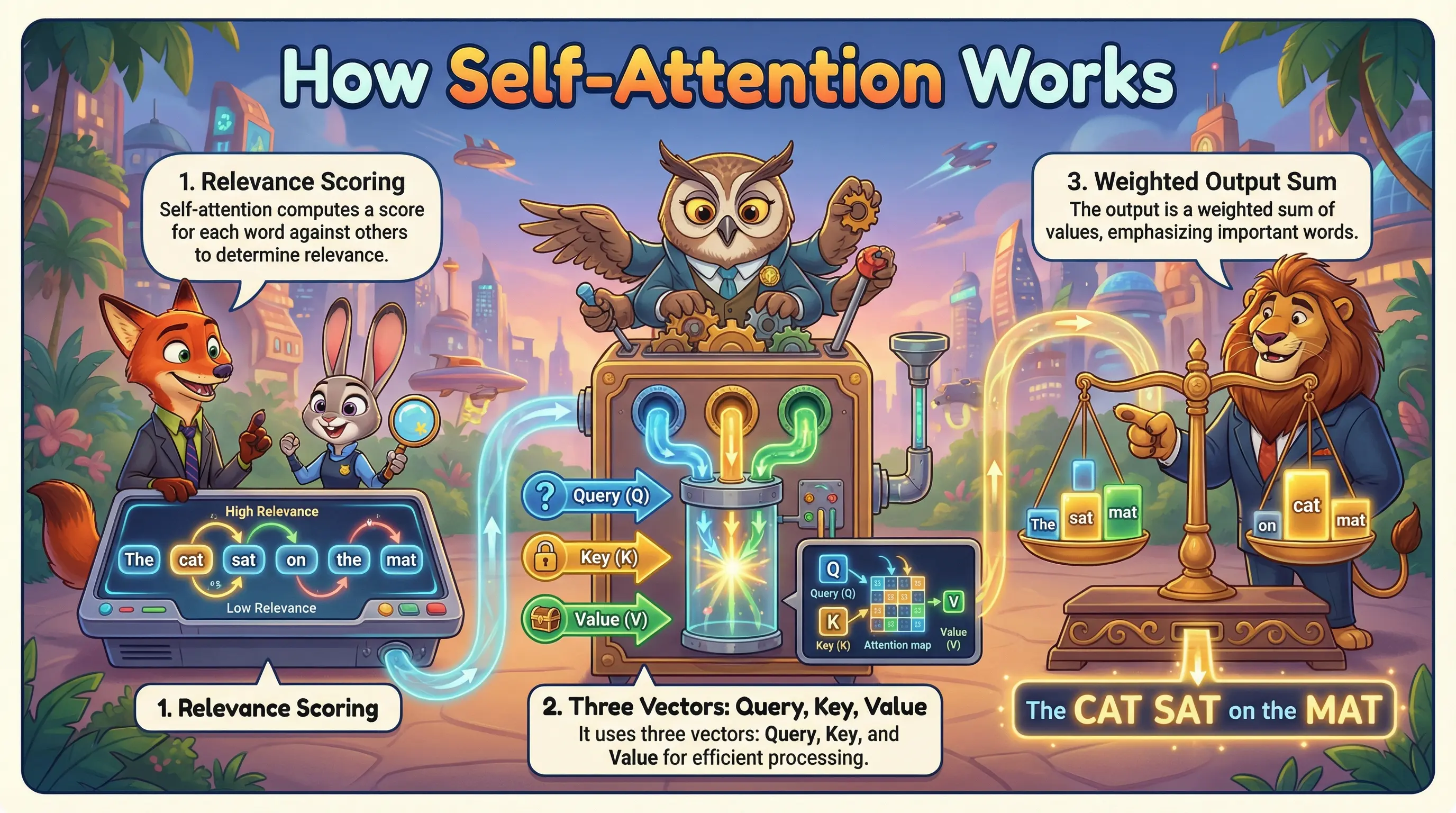
O un PPT temático de Zootopia para presentaciones creativas:
What You'll Learn
- Complete step-by-step workflow (including account setup)
- The script-first method — my secret to 600+ consistent slides
- 4 proven methods to fix text errors in AI-generated slides
- 6 popular PPT styles + how to lock your preferred style
- How to create long presentations (when AI only generates 10-15 slides at a time)
1Complete Workflow: From Setup to Export
NotebookLM is Google's AI knowledge management product. You need a Google account to use it.

Note: NotebookLM is free, but Slide Deck and Infographic generation have usage limits. Free tier quality is lower and requires longer wait times. For best results, consider Gemini Pro subscription.
Paso 1: Acceder a NotebookLM
Ve a notebooklm.google.com e inicia sesión con tu cuenta de Google. Para mejores resultados, considera la suscripción Gemini Pro.
Paso 2: Crear un Nuevo Notebook

Haz clic en 'Crear nuevo' y dale a tu notebook un nombre descriptivo relacionado con el tema de tu presentación.
Paso 3: Subir Tus Fuentes
Añade tus materiales - PDFs, Google Docs, enlaces web, videos de YouTube o texto plano. NotebookLM analizará todo.
- PDF documents: Research reports, whitepapers, ebooks
- Google Docs: Import directly from Google Drive
- Web links: Paste URLs, it auto-extracts content
- YouTube videos: Paste video links, it extracts subtitles
- Plain text: Copy-paste directly

Pro Tip: The Script-First Method
Here's a technique most people don't know: uploading raw materials directly often produces suboptimal results because AI organizes content its own way.
My approach: Generate a speech script first, then use that script to generate the PPT.
<strong>Phase 1:</strong> Use any AI (Claude, ChatGPT, etc.) to generate a complete speech script based on your materials.
Phase 1: Use any AI (Claude, ChatGPT, etc.) to generate a complete speech script based on your materials.
For example, if I want to make a PPT about Elon Musk's interview, I upload the interview video to NotebookLM and ask it to generate a script:
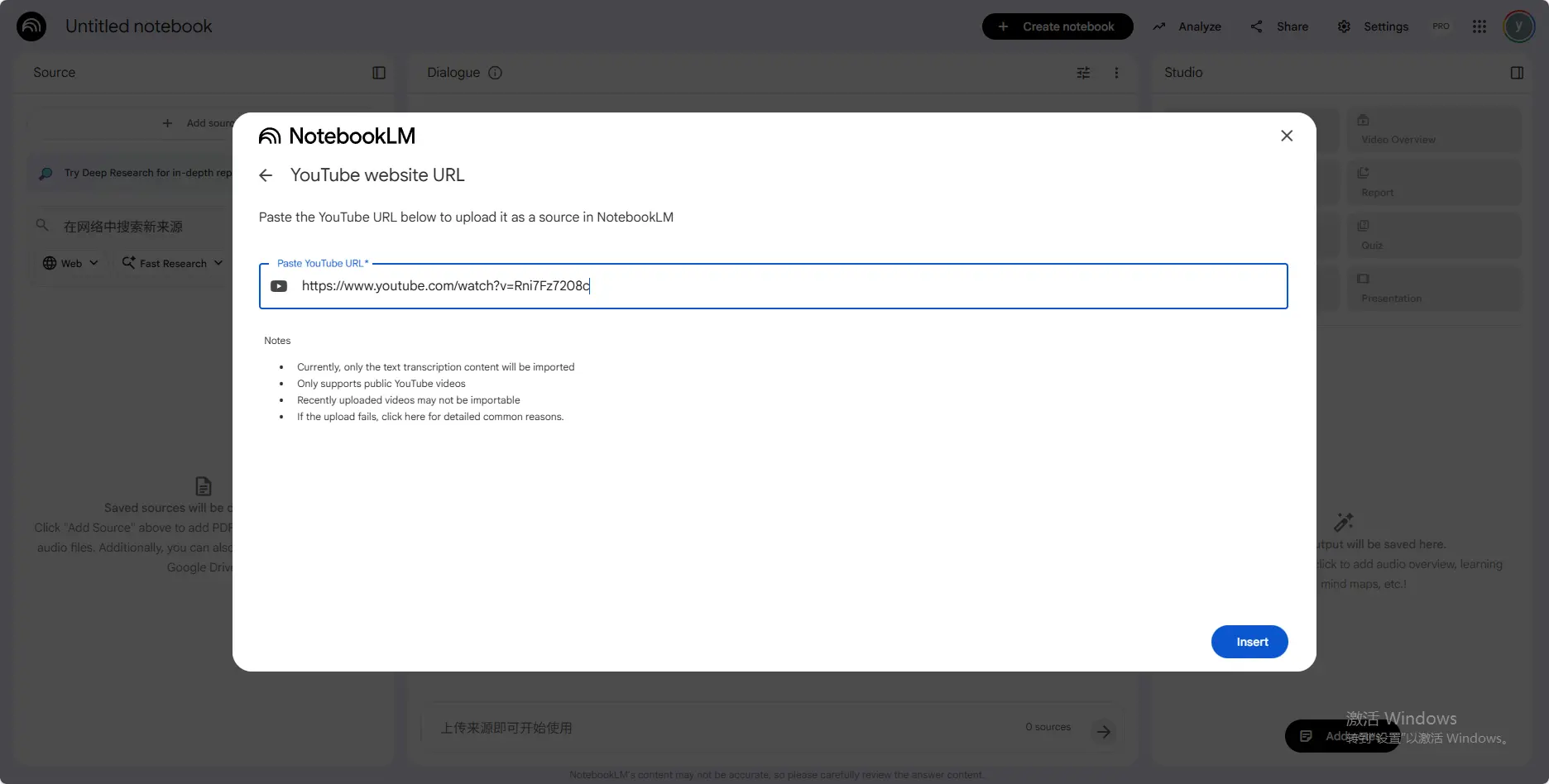
// Sample prompt for script generation:
You are an expert in writing speech scripts. Based on the following materials, please help me draft a speech script on the topic of XX. The requirements are as follows:
- • Divide the script into X chapters, with 3–5 key points for each chapter.
- • Each key point should have a clear heading, plus 2–3 sentences of explanation.
- • Language style: professionally sound yet colloquial and conversational.
- • Total duration: approximately XX minutes

Phase 2: Copy the generated script and paste it into NotebookLM as a source using "Paste text".
Phase 3: Generate your PPT. Now it follows your script's structure exactly — highly aligned with your vision.
This is how I created my 70-page PPT. I spent 30 minutes refining the script with AI, confirmed the content was solid, then fed it to NotebookLM. You control the content; AI handles the visuals.
Step 4: Generate Your Slide Deck
Select the sources you want to use, then look for the Studio panel on the right.

Customize format, language, and style:

- Format: "Detailed Deck" (content-rich, for reading) or "Presenter Slides" (minimal, for live presentations)
- Language: Choose your preferred output language
- Custom Prompt: Define your desired style (crucial for quality!)
For example, my Doraemon-style PPT used this prompt: "I'd like to ask you to create a PPT for an AI PPT generation course where Doraemon explains the entire content. It should be presented in Doraemon's style, with approximately 15 pages."
Click "Generate" and wait 3-10 minutes depending on content volume. You can continue working — it generates in the background.
Paso 5: Revisar y Editar
Revisa las diapositivas generadas y usa las herramientas de edición para hacer ajustes según sea necesario.


2How to Fix Text Errors in AI-Generated Slides
NotebookLM slides look amazing, but there's one big issue: text sometimes gets garbled. Since each slide is an image, editing is tricky.
NotebookLM currently only exports PDF — no direct editing. After testing all available solutions, I've summarized three approaches for different scenarios:
Method 1: DrawPPT AI Editor (Recommended)
Use DrawPPT's built-in editing tools: <strong>Edit Text</strong>, <strong>Regenerate</strong>, and <strong>Add Image</strong> — all without leaving the platform.
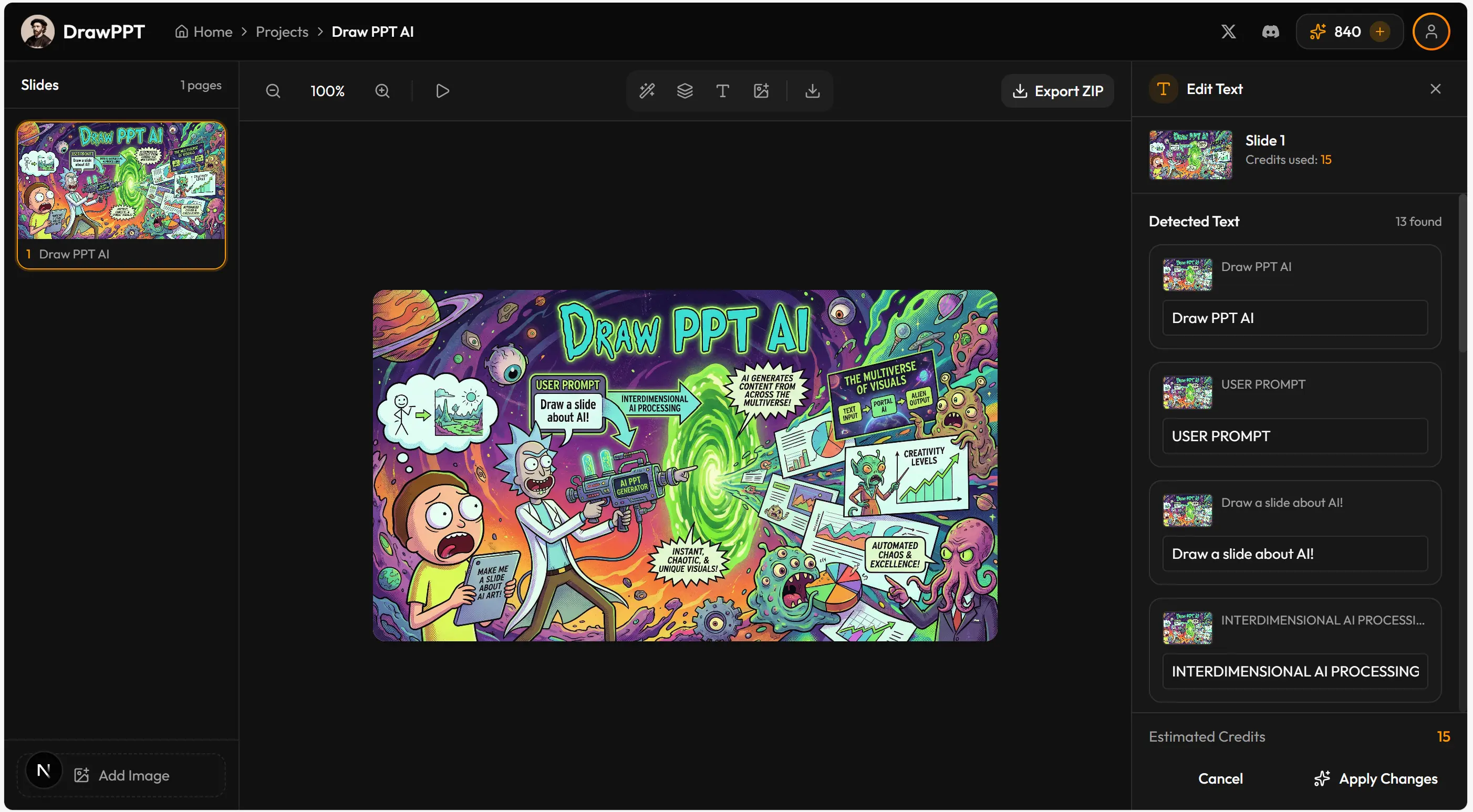
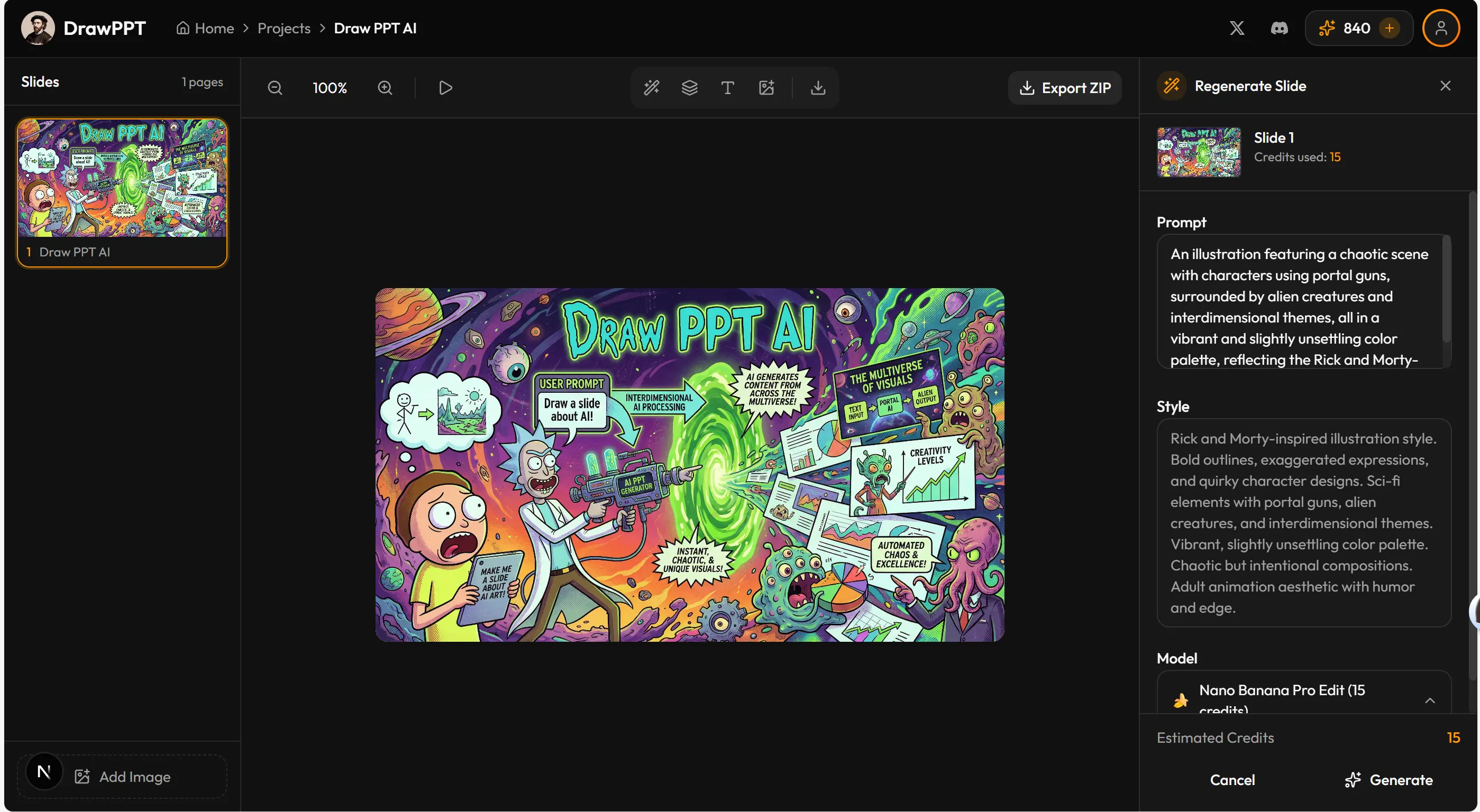
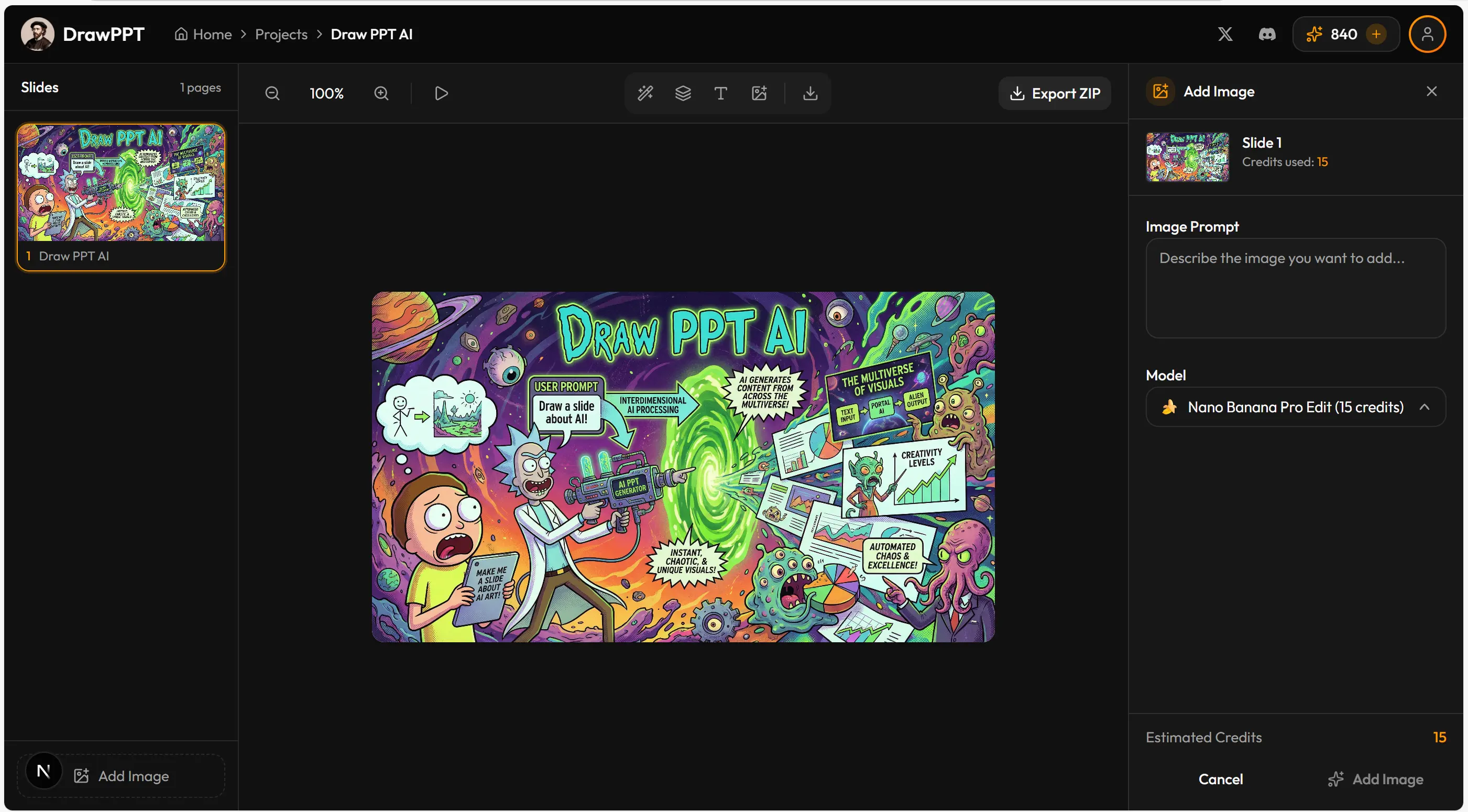
Best for: Fixing typos without regenerating. Don't like the design? Regenerate with a new style. Supports online presentation — no tool-switching needed.
Method 2: Lovart Image Text Editing
Lovart Lovart is a powerful AI design tool with an "Edit Text" feature — it recognizes text in images and lets you modify individual words.
Best for: Changing 1-2 words or numbers while preserving the original design. However, if the entire slide has garbled text, this won't help — use method 3 instead.
Method 3: PDF to PPT Conversion
Use PDF-to-PPT conversion tools to convert the PDF into editable PowerPoint format, then edit normally.
Best for: Many edits needed, or redesigning the overall layout. However, conversion often causes fidelity loss, and the original AI style may be compromised.
| Method | Best For | Preserves Style? |
|---|---|---|
| DrawPPT AI Editor | Quick fixes, regeneration | ✓ Yes |
| Lovart | 1-2 word changes | ✓ Yes |
| PDF to PPT | Major restructuring | ✗ Partial |
Ready to Create Your AI PPT?
Start with DrawPPT AI — 22+ professional templates, instant editing, and no design skills required.
Preguntas frecuentes
¿Qué es NotebookLM?
NotebookLM es la herramienta de investigación y toma de notas impulsada por IA de Google. Puede analizar tus documentos, PDFs, videos de YouTube y enlaces web, y luego ayudarte a crear presentaciones, resúmenes y más. Usa Nanobanana Pro (Gemini 3 Pro) para generar diapositivas de alta calidad.
¿Cómo uso NotebookLM para hacer PPT?
Primero, sube tus materiales fuente (PDFs, documentos, enlaces) a NotebookLM. Luego haz clic en 'Studio' en la barra lateral y selecciona 'Slide Deck'. Elige tu estilo preferido y número de diapositivas, luego haz clic en Generar.
¿Es NotebookLM gratis?
NotebookLM tiene un nivel gratuito con uso limitado para la generación de diapositivas. Para mejor calidad y generación más rápida, se recomienda una suscripción a Gemini Pro.
¿Puedo exportar las diapositivas de NotebookLM a PowerPoint?
NotebookLM genera diapositivas como imágenes. Puedes descargar estas imágenes y usar DrawPPT para convertirlas a formato PPTX editable.
¿Cuál es la diferencia entre NotebookLM y DrawPPT?
NotebookLM es la herramienta de investigación de Google que genera diapositivas IA desde tus documentos. DrawPPT es una plataforma PPT IA especializada que ofrece 22+ plantillas, edición instantánea, renderizado perfecto de texto CJK y exportación PPTX con un clic.
Tover Wu
Experto en presentaciones IA
3 years of experience researching AI presentation tools. Created 600+ AI-generated slides and counting. Passionate about making professional presentations accessible to everyone.