NotebookLM PPTチュートリアル:600枚以上のAIスライドを作成
2025年 AIプレゼンテーション完全ガイド

Tover Wu
AIプレゼンテーション専門家
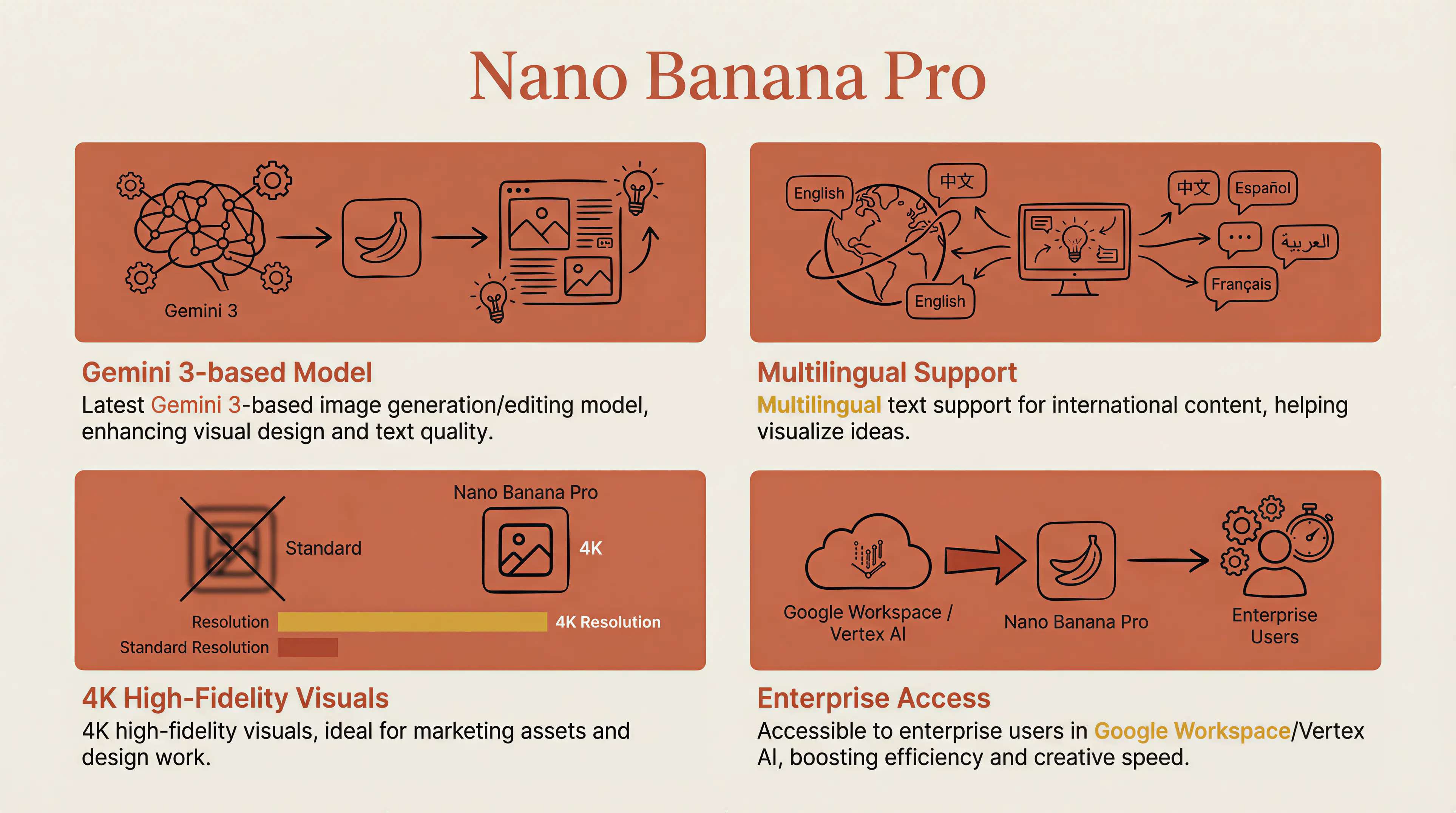
NotebookLMで生成されたClaudeスタイルのAIプレゼンテーション — 温かみのある学術的美学とプロフェッショナルな深み
私はAI PPT作成について約3年間研究してきました。20以上のツールをテストしました — Gamma、KIMI、AIPPT、通義、iFlytek、天工、文心一言... 名前を挙げられるほぼすべてのツールを試しました。
During my studies and work, I used Gamma extensively for presentations. Back then, I thought Gamma was the ceiling. Then Google released Nanobanana Pro (Gemini 3 Pro image model) and integrated it into NotebookLM, and everything changed.
"PPT creation evolved from 'AI fills content + template matching' to 'AI directly draws images as PPT slides.'"
Every slide is a uniquely designed image — no template collisions, maximum visual distinctiveness.
For example, I can create a Claude Style PPT with warm academic aesthetics:
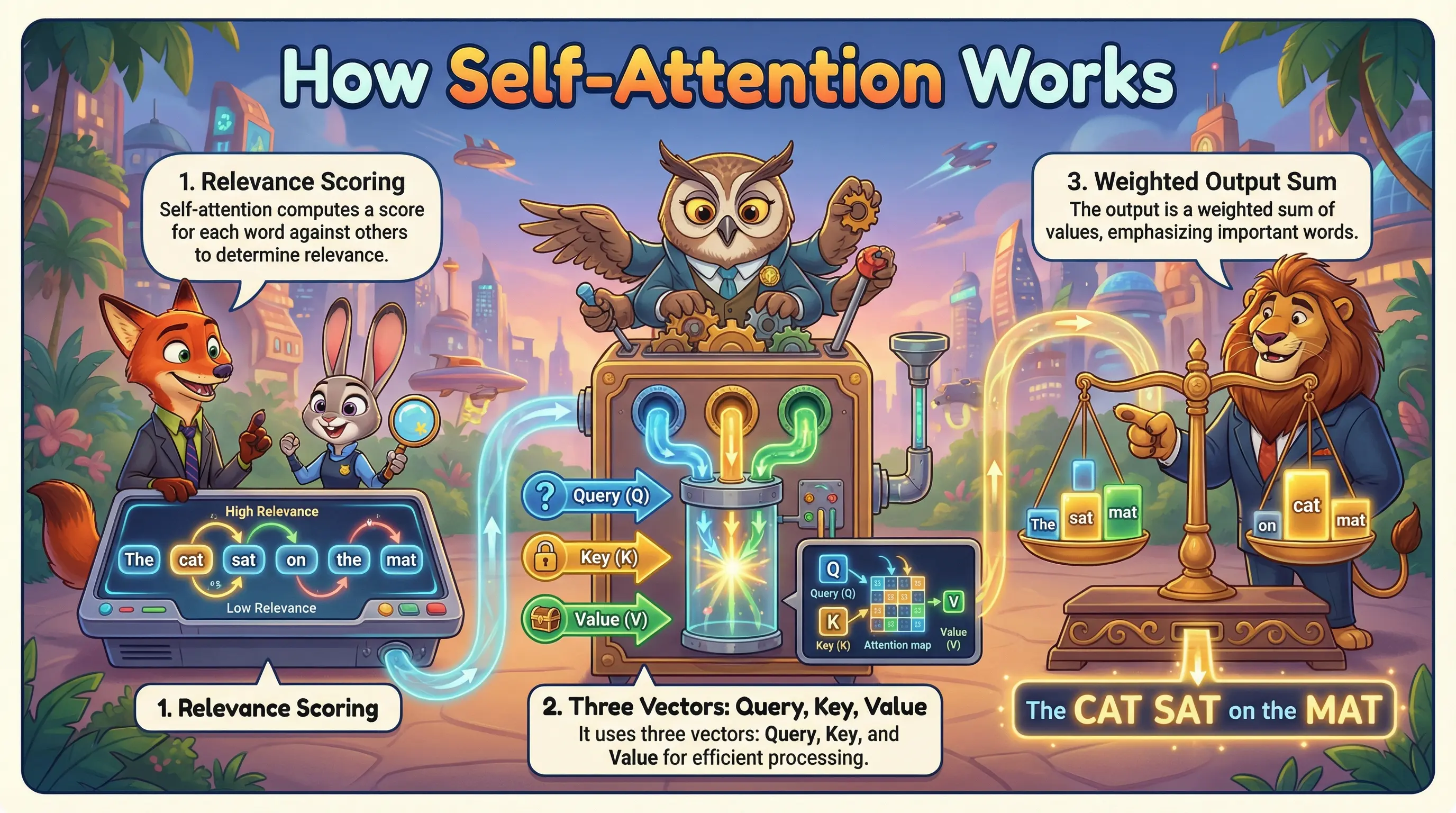
Or a Zootopia-themed PPT for creative presentations:
What You'll Learn
- Complete step-by-step workflow (including account setup)
- The script-first method — my secret to 600+ consistent slides
- 4 proven methods to fix text errors in AI-generated slides
- 6 popular PPT styles + how to lock your preferred style
- How to create long presentations (when AI only generates 10-15 slides at a time)
1Complete Workflow: From Setup to Export
NotebookLM is Google's AI knowledge management product. You need a Google account to use it.

Note: NotebookLM is free, but Slide Deck and Infographic generation have usage limits. Free tier quality is lower and requires longer wait times. For best results, consider Gemini Pro subscription.
Step 1: Get Your Account Ready
You'll need a Gemini Pro subscription for the best experience. Gemini Pro accounts are linked with NotebookLM — same login works for both.
Step 2: Create Your Notebook

After logging in, click "Create new" to create a notebook. Give it a descriptive name — for example, if you're making an AI marketing trends PPT, call it "AI Marketing Trends 2025".
Step 3: Upload Your Materials (The Secret Sauce)
The materials you upload determine your PPT's content quality. NotebookLM supports:
- PDF documents: Research reports, whitepapers, ebooks
- Google Docs: Import directly from Google Drive
- Web links: Paste URLs, it auto-extracts content
- YouTube videos: Paste video links, it extracts subtitles
- Plain text: Copy-paste directly

Pro Tip: The Script-First Method
Here's a technique most people don't know: uploading raw materials directly often produces suboptimal results because AI organizes content its own way.
My approach: Generate a speech script first, then use that script to generate the PPT.
<strong>Phase 1:</strong> Use any AI (Claude, ChatGPT, etc.) to generate a complete speech script based on your materials.
Phase 1: Use any AI (Claude, ChatGPT, etc.) to generate a complete speech script based on your materials.
For example, if I want to make a PPT about Elon Musk's interview, I upload the interview video to NotebookLM and ask it to generate a script:
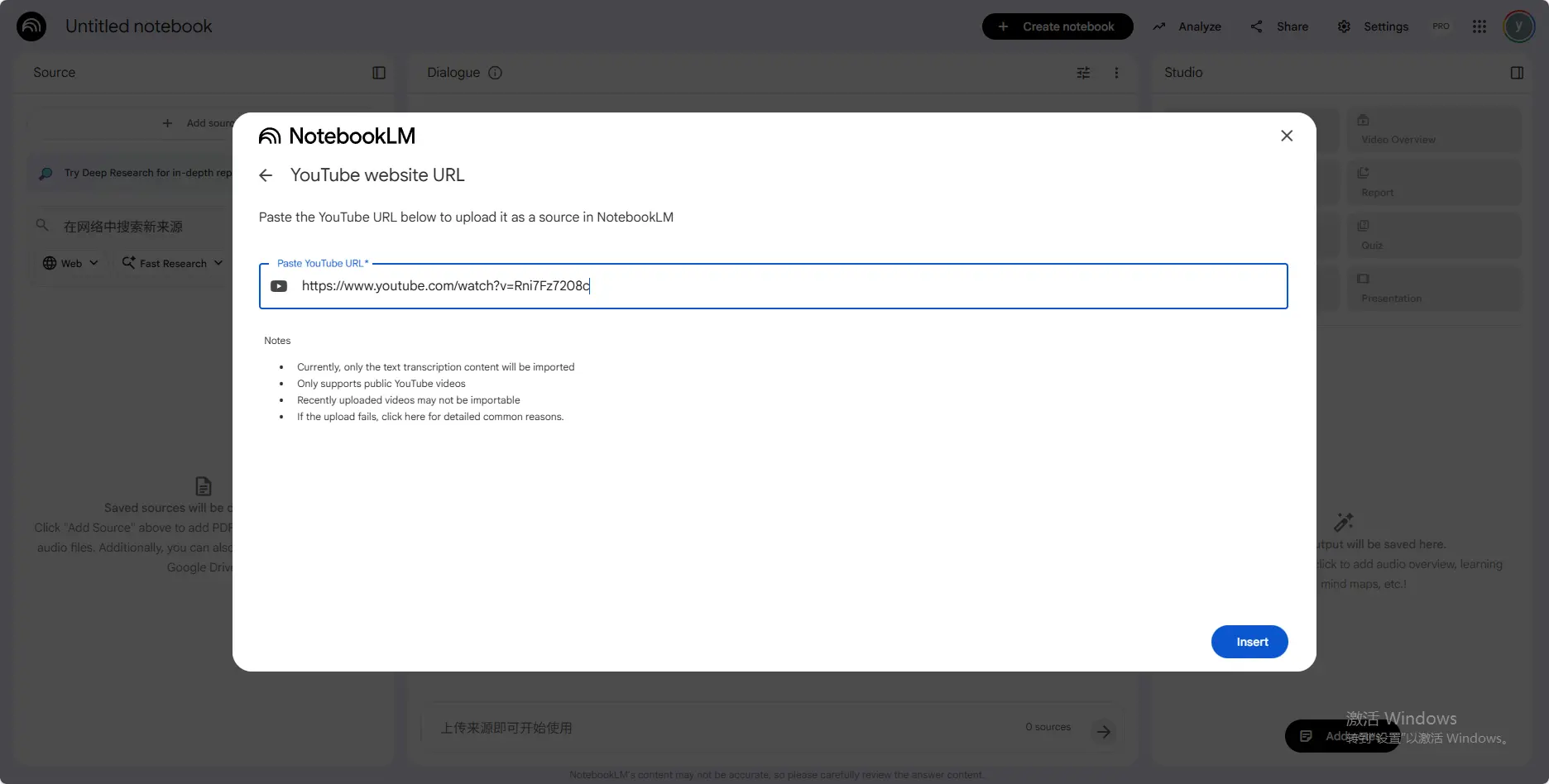
// Sample prompt for script generation:
You are an expert in writing speech scripts. Based on the following materials, please help me draft a speech script on the topic of XX. The requirements are as follows:
- • Divide the script into X chapters, with 3–5 key points for each chapter.
- • Each key point should have a clear heading, plus 2–3 sentences of explanation.
- • Language style: professionally sound yet colloquial and conversational.
- • Total duration: approximately XX minutes

Phase 2: Copy the generated script and paste it into NotebookLM as a source using "Paste text".
Phase 3: Generate your PPT. Now it follows your script's structure exactly — highly aligned with your vision.
This is how I created my 70-page PPT. I spent 30 minutes refining the script with AI, confirmed the content was solid, then fed it to NotebookLM. You control the content; AI handles the visuals.
Step 4: Generate Your Slide Deck
Select the sources you want to use, then look for the Studio panel on the right.

Customize format, language, and style:

- Format: "Detailed Deck" (content-rich, for reading) or "Presenter Slides" (minimal, for live presentations)
- Language: Choose your preferred output language
- Custom Prompt: Define your desired style (crucial for quality!)
For example, my Doraemon-style PPT used this prompt: "I'd like to ask you to create a PPT for an AI PPT generation course where Doraemon explains the entire content. It should be presented in Doraemon's style, with approximately 15 pages."
Click "Generate" and wait 3-10 minutes depending on content volume. You can continue working — it generates in the background.
Step 5: View and Export
Once complete, download as PDF or present directly in the browser.


2How to Fix Text Errors in AI-Generated Slides
NotebookLM slides look amazing, but there's one big issue: text sometimes gets garbled. Since each slide is an image, editing is tricky.
NotebookLM currently only exports PDF — no direct editing. After testing all available solutions, I've summarized three approaches for different scenarios:
Method 1: DrawPPT AI Editor (Recommended)
Use DrawPPT's built-in editing tools: <strong>Edit Text</strong>, <strong>Regenerate</strong>, and <strong>Add Image</strong> — all without leaving the platform.
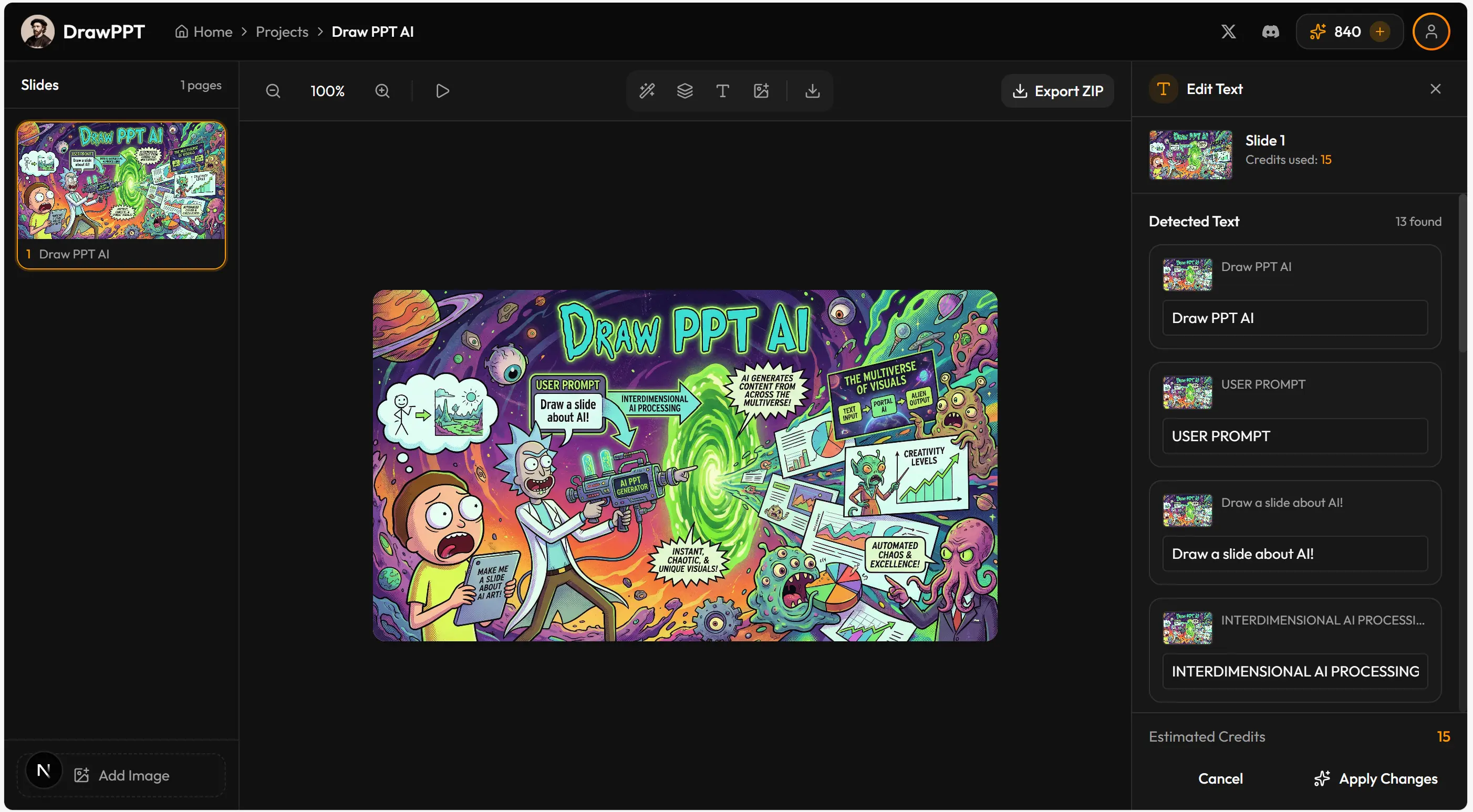
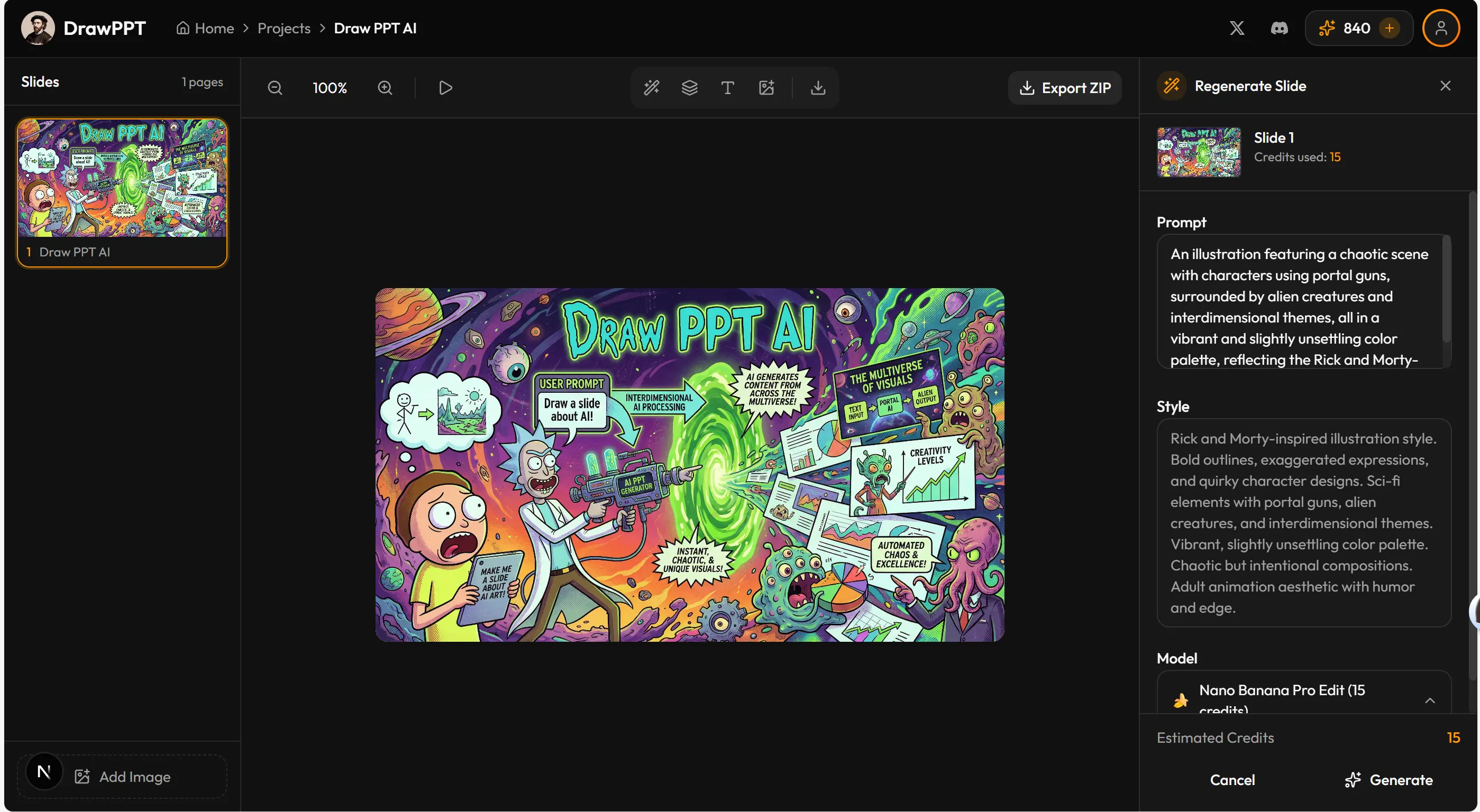
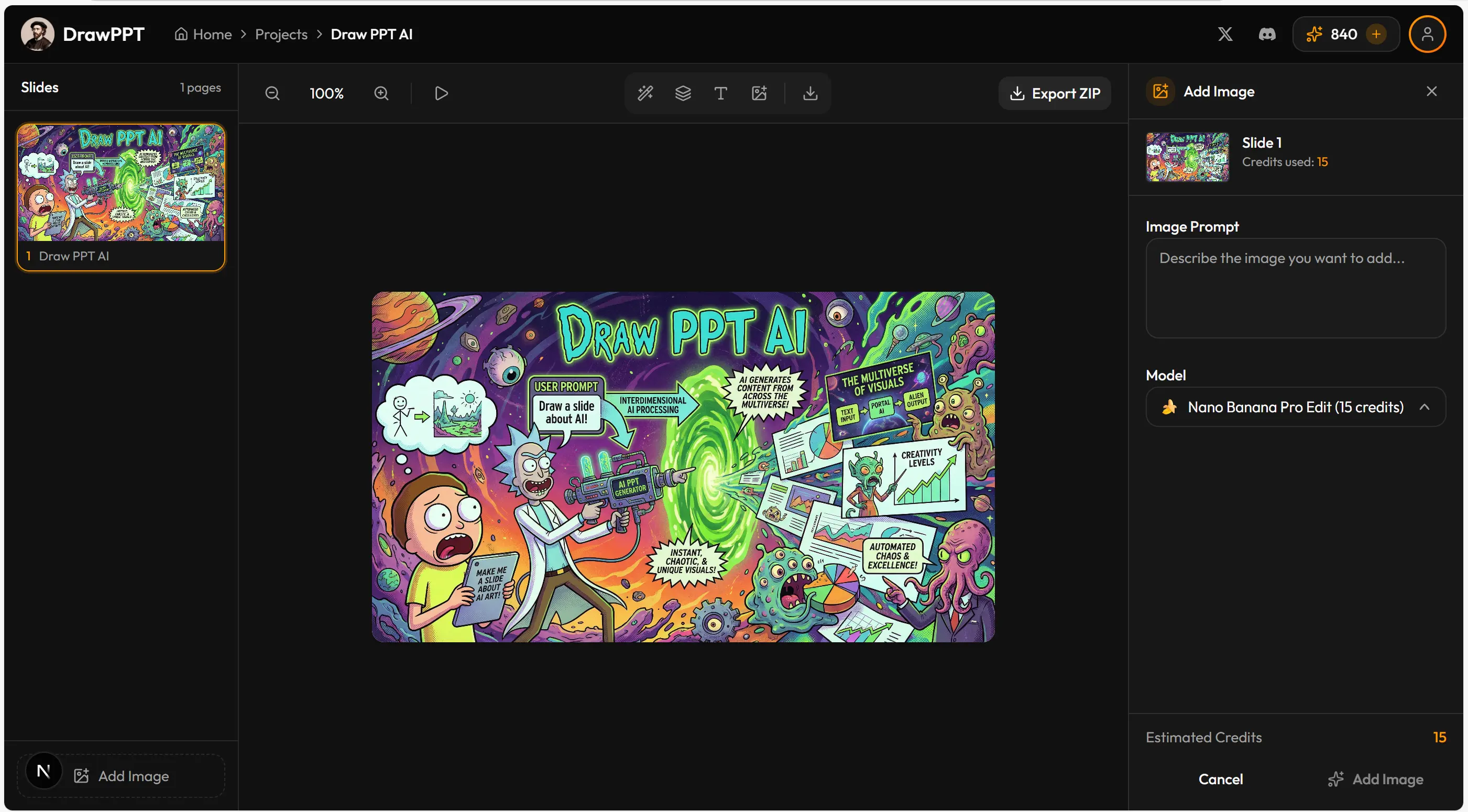
Best for: Fixing typos without regenerating. Don't like the design? Regenerate with a new style. Supports online presentation — no tool-switching needed.
Method 2: Lovart Image Text Editing
Lovart Lovart is a powerful AI design tool with an "Edit Text" feature — it recognizes text in images and lets you modify individual words.
Best for: Changing 1-2 words or numbers while preserving the original design. However, if the entire slide has garbled text, this won't help — use method 3 instead.
Method 3: PDF to PPT Conversion
Use PDF-to-PPT conversion tools to convert the PDF into editable PowerPoint format, then edit normally.
Best for: Many edits needed, or redesigning the overall layout. However, conversion often causes fidelity loss, and the original AI style may be compromised.
| Method | Best For | Preserves Style? |
|---|---|---|
| DrawPPT AI Editor | Quick fixes, regeneration | ✓ Yes |
| Lovart | 1-2 word changes | ✓ Yes |
| PDF to PPT | Major restructuring | ✗ Partial |
Ready to Create Your AI PPT?
Start with DrawPPT AI — 22+ professional templates, instant editing, and no design skills required.
よくある質問
NotebookLMとは?
NotebookLMはGoogleのAI駆動リサーチ・ノートツールです。ドキュメント、PDF、YouTubeビデオ、ウェブリンクを分析し、プレゼンテーション、要約などを作成できます。高品質なスライド生成にNanobanana Pro(Gemini 3 Pro)を使用しています。
NotebookLMでPPTを作成するには?
まず、ソース資料(PDF、ドキュメント、リンク)をNotebookLMにアップロードします。次にサイドバーの「Studio」をクリックし、「Slide Deck」を選択。お好みのスタイルとスライド数を選んで「生成」をクリック。AIがコンテンツに基づいてスライドを作成します。
NotebookLMは無料ですか?
NotebookLMには無料枠がありますが、スライド生成には使用制限があります。最高品質と高速生成には、Gemini Proサブスクリプションがおすすめです。無料枠は待ち時間が長く、品質が低い場合があります。
NotebookLMのスライドをPowerPointにエクスポートできますか?
NotebookLMはスライドを画像として生成します。これらの画像をダウンロードし、DrawPPTで編集可能なPPTX形式に変換できます。DrawPPTはテキスト編集、再生成、画像強化機能も提供しています。
NotebookLMとDrawPPTの違いは?
NotebookLMはGoogleのリサーチツールで、ドキュメントからAIスライドを生成します。DrawPPTは22+テンプレート、即時編集、完璧なCJKテキストレンダリング、ワンクリックPPTXエクスポートを提供する専門AIプラットフォームです。多くのユーザーが両方を使用しています - NotebookLMで初期生成、DrawPPTで編集・強化。
Tover Wu
AIプレゼンテーション専門家
3 years of experience researching AI presentation tools. Created 600+ AI-generated slides and counting. Passionate about making professional presentations accessible to everyone.