Complete Guide to Link to PPT: Convert Any URL to Presentation in One Click
Say goodbye to tedious copy-paste. Learn how to use DrawPPT to convert any webpage—news, blogs, product pages—into beautiful AI presentations with one click.
DrawPPT Team
Jan 2025 · 10 min read
When to Use Link to PPT?
News Briefing PPT
Convert morning news links into meeting briefings, compile daily highlights in 5 minutes.
Competitive Analysis
Paste competitor product page links to quickly generate comparison PPTs for internal sharing or client presentations.
Research Paper Sharing
Convert academic articles or research report links into easy-to-understand presentations for academic reports or team sharing.
Training Material Creation
Transform technical documentation or tutorial links into training PPTs to help new employees get up to speed quickly.
What is Link/URL to PPT?
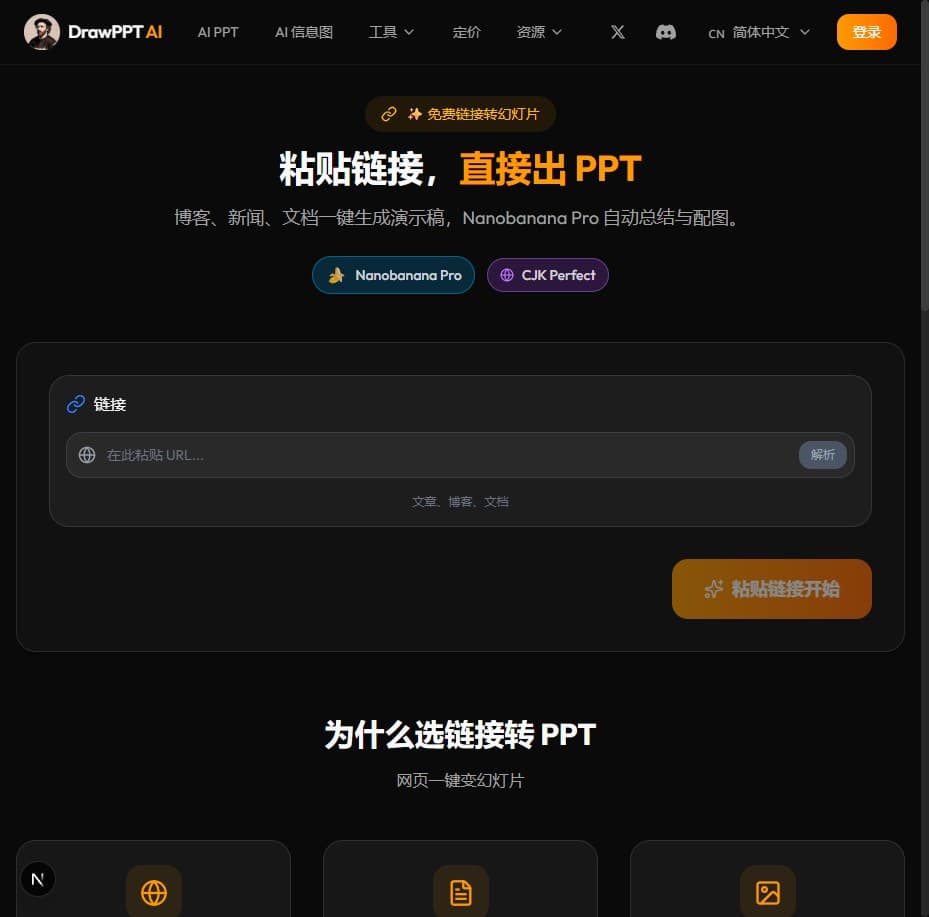
Link to PPT is one of DrawPPT's core features, allowing you to simply paste a webpage URL to automatically extract content and generate beautiful presentations. AI intelligently analyzes page structure, extracts titles, body text, and key information, then auto-generates images—no manual copy-pasting required.
This feature is especially suitable for quickly converting web resources into presentation materials—such as turning news articles into morning briefings, competitor pages into analysis reports, or technical docs into training materials.
Compared to Traditional Methods
Traditional: Open page → Copy text → Paste to PPT → Manual layout → Find images → Adjust format (30+ min)
Link to PPT: Paste link → Choose style → Auto-generate (1 min)
Supported Webpage Types
DrawPPT's link parsing engine supports various webpage types, optimized for different content structures:
News Articles
Supports major news sites, auto-extracts headlines, body text, and images for clear news presentation slides.
Examples: BBC, CNN, Reuters, NYT, etc.
Blog Posts
Intelligently recognizes blog structure, preserves heading hierarchy, converts long articles into clear bullet-point presentations.
Examples: Medium, Substack, WordPress, etc.
Product Pages
Extracts product features, specs, pricing, perfect for product introductions or competitive analysis presentations.
Examples: Amazon, eBay, Shopify stores, etc.
Wikipedia
Auto-parses Wikipedia section structure, generates educational presentations perfect for teaching and learning.
Examples: Wikipedia, Britannica, etc.
Documentation
Supports technical docs and API documentation, transforms complex technical content into easy-to-understand training materials.
Examples: GitHub README, Dev.to, docs sites, etc.
5 Steps to Convert Link to PPT
Copy the URL
Open the webpage you want to convert in your browser and copy the full URL from the address bar. Make sure the link is publicly accessible—private pages or login-required content cannot be extracted.
Tip: Choose content-rich pages with clear structure
Paste in DrawPPT
Open DrawPPT, select 'Link' mode in the input box, and paste the copied URL. The system will automatically identify the webpage type and start extracting content.
Tip: Both http and https links are supported
Select Style and Options
Choose your preferred PPT style (20+ artistic styles available), set slide count, language, and other options. You can also enable 'Deep Research' mode for richer content.
Tip: Minimal styles for business, illustrated styles for teaching
Generate Presentation
Click generate and AI will analyze the webpage content, extract key information, create an outline, and add beautiful AI-generated images to each slide. The whole process usually takes just 30-60 seconds.
Tip: Preview in real-time during generation
Edit and Export
After generation, you can adjust text, regenerate images, add or remove slides in the editor. When satisfied, export to PPTX format for use in PowerPoint, Keynote, or Google Slides.
Tip: Check fonts and layout before exporting

Optimization Tips: Get Better Results
Choose Well-Structured Pages
Pages with clear heading hierarchy (H1, H2, H3) work best. Avoid single-page scroll designs or heavily JavaScript-loaded content.
Ensure Appropriate Content Length
Ideal webpage content is between 500-5000 words. Too short lacks material; too long may dilute key points. Consider splitting long articles.
Use Original Links
Use original website links rather than republished or aggregated versions. Original content usually has better structure and higher quality images.
Combine with Deep Research Mode
With Deep Research mode enabled, AI will search for supplementary information beyond the webpage, making your PPT more comprehensive and authoritative.
Adjust Generation Parameters
Adjust slide count based on content volume. Information-dense pages can generate more slides; brief content should use fewer to avoid repetition.
Real-World Examples
Here are real examples generated using the Link to PPT feature, showing conversion results for different webpage types:

User Feedback
"Used to spend 2 hours on industry daily reports, now I just paste news links and it's done in 5 minutes." — Consulting Analyst
"For client competitive analysis, I just convert competitor website links to PPT. Huge efficiency boost." — Product Manager
Frequently Asked Questions
Which websites are supported?
DrawPPT supports most publicly accessible webpages, including news sites, blog platforms, e-commerce product pages, Wikipedia, technical documentation, etc. Login-required pages, paywalled content, or heavily JavaScript-loaded single-page applications are not supported.
How many credits does Link to PPT cost?
Link to PPT basic cost is 2 credits (outline generation). Deep Research mode costs an additional 5 credits. AI images for each slide cost 1-30 credits depending on the model. New users get 40 free credits upon registration.
Why can't some webpages be extracted?
Common reasons include: 1) Page requires login or has access restrictions; 2) Content loaded dynamically via JavaScript; 3) Site has crawler restrictions; 4) Incorrect link format. Try opening the link in browser incognito mode—if accessible, it should work.
Can I convert multiple links at once?
Currently, only one link can be converted at a time. To combine content from multiple webpages, generate separately and merge in the editor, or compile the content into a document and use the 'Document to PPT' feature.
Who owns the copyright of generated PPTs?
Presentations generated with DrawPPT are owned by the user. However, the original content's copyright still belongs to the source author. Confirm copyright licensing before commercial use and cite sources when necessary.
Related Features
Try Link to PPT Now
Sign up free for 40 credits and convert your first webpage link into a beautiful AI presentation.
Start Free →